
If you searched “Grok Imagine in ChatGPT”, here’s the short answer: ChatGPT doesn’t include xAI’s Grok Imagine. Its built-in images come from OpenAI’s own model. You can still use Grok Imagine inside ChatGPT by adding AiWings as a plugin. It takes about two minutes, and after that you just ask for Grok Imagine by name.
What you need
- A ChatGPT account on a plan that lets you add custom MCP plugins.
- An AiWings account (sign in with Google). Usage comes from your AiWings credits.
- About two minutes.
Step 1: Add AiWings to ChatGPT
You only do this once. After that, Grok Imagine is available in every new ChatGPT chat.
- 1In ChatGPT, open Plugins in the sidebar and click Add.
- 2Choose Add custom MCP server and name it AiWings.
- 3Paste the server URL below and keep Authentication set to OAuth.
- 4Tick the confirmation box and click Create as a plugin.
- 5Sign in to AiWings when the window opens and allow access.
https://aiwings.io/api/mcpStep 2: Ask ChatGPT for a Grok Imagine image
Start a new chat and name the model in your request. ChatGPT calls the AiWings image tool, runs Grok Imagine, and shows the result right in the conversation.
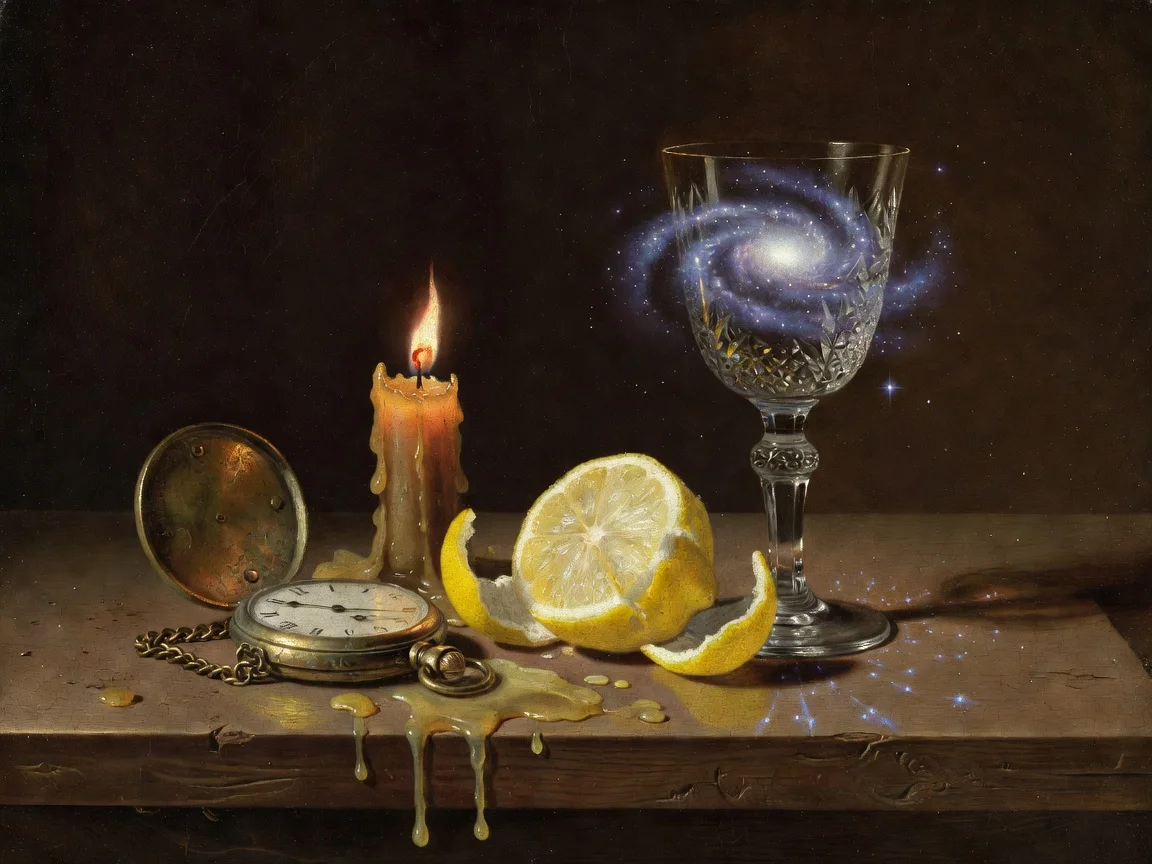
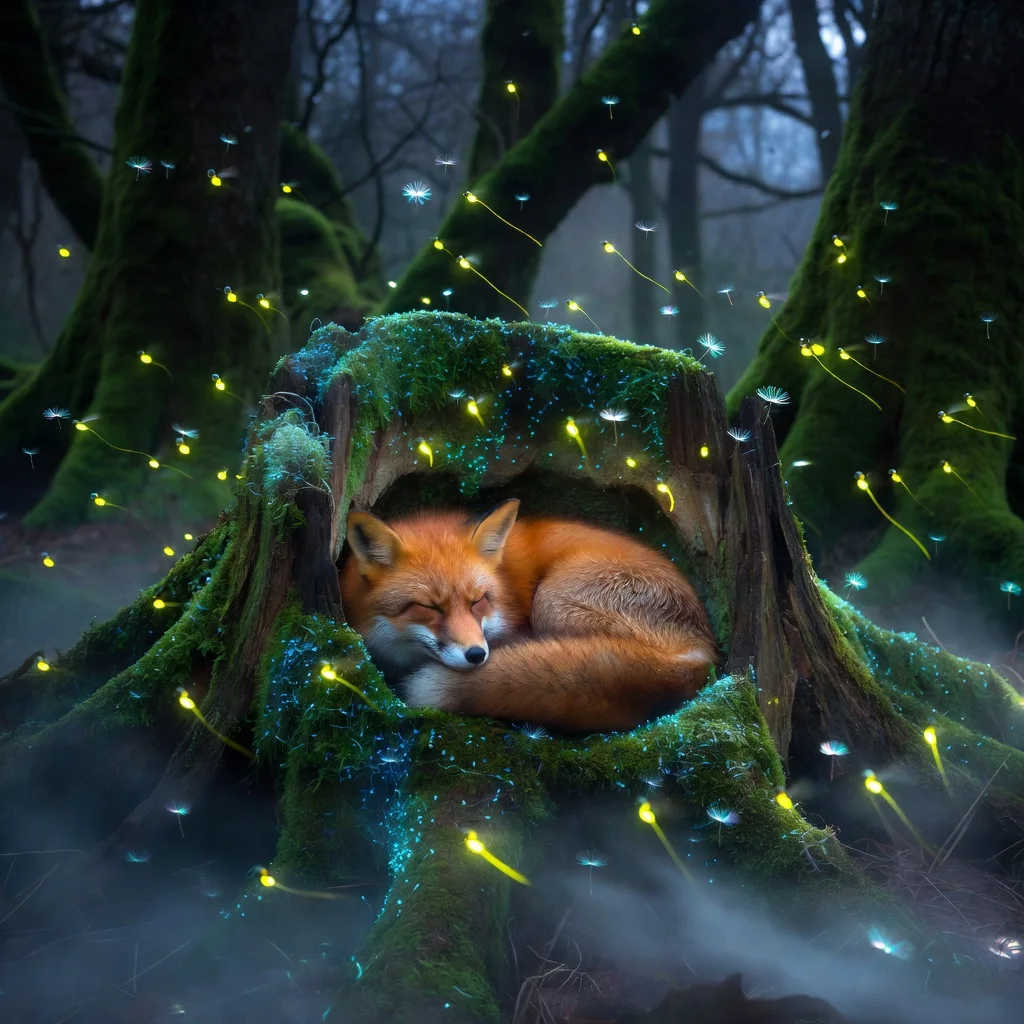
Use Grok Imagine to make a 4:3 baroque oil painting of a swirling galaxy with golden clouds and dramatic light, in the style of an old master.Grok Imagine is quick and good with style, from oil paint to anime. Here are real, unedited results:


Step 3: Restyle an image
Grok Imagine takes one reference image. Ask ChatGPT to open the AiWings upload widget, add the image, and describe the new style.
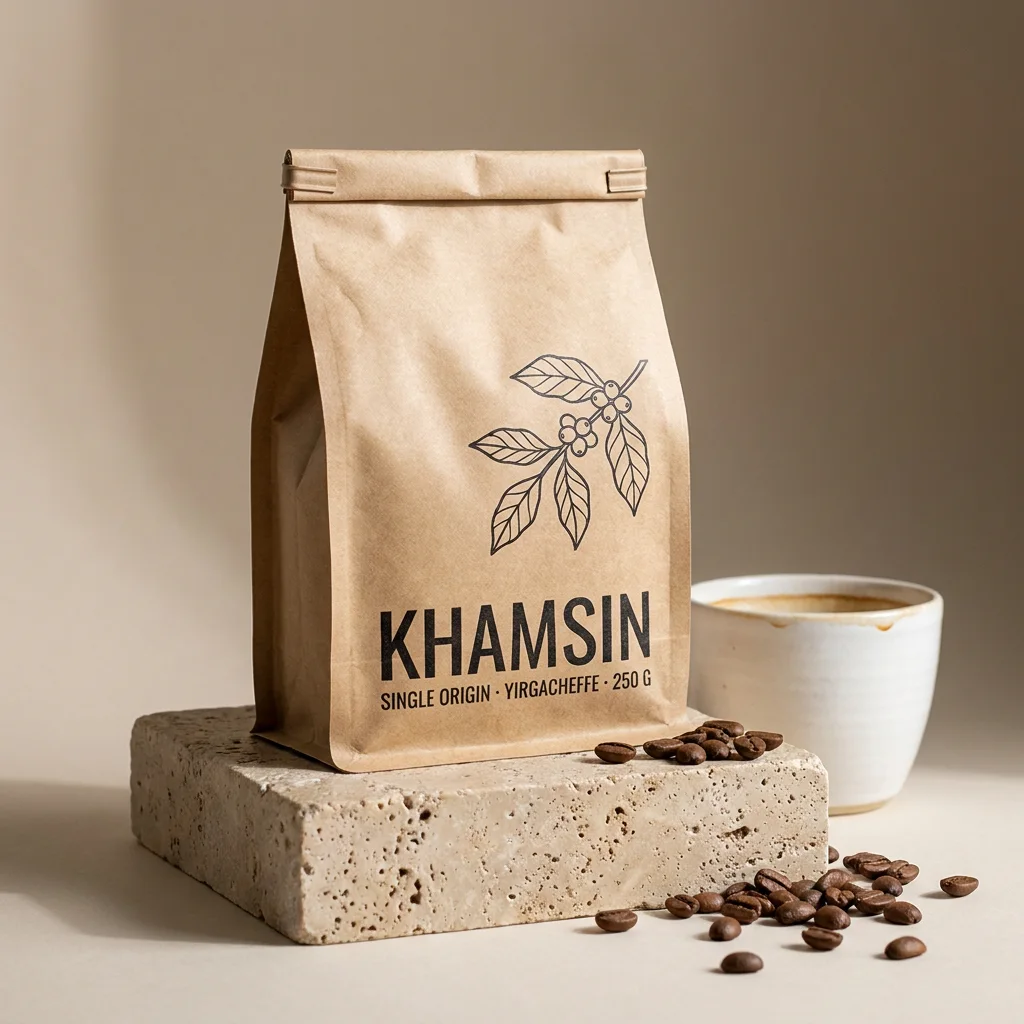
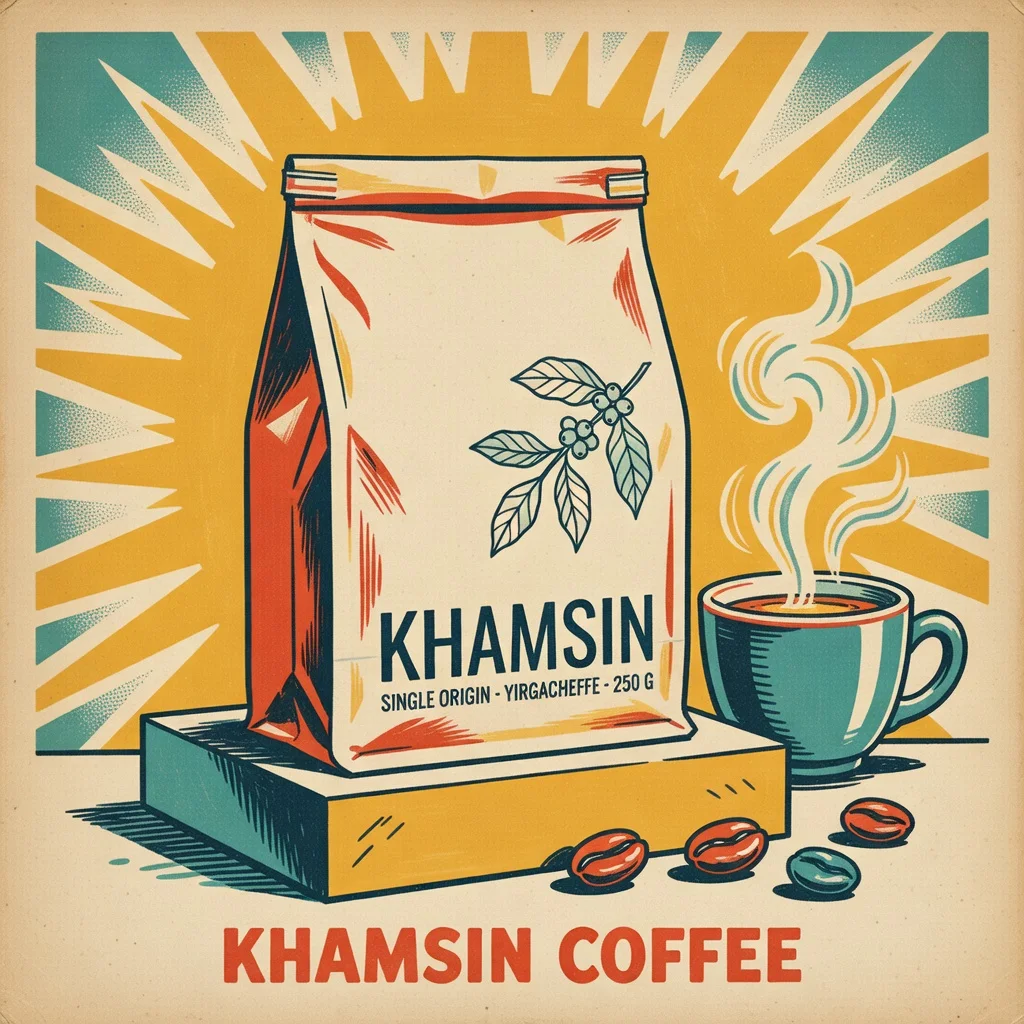
Open the AiWings upload widget. Then use Grok Imagine to restyle my product photo as a 1960s printed ad, with a retro color palette and simple lettering.The original product shot on the left, and the Grok Imagine restyle on the right:
Grok Imagine at a glance
Grok Imagine is xAI’s image model, built for speed and style. It works the same way everywhere you add it:
| Model | Sizes | Reference images | Cost per image | Best for |
|---|---|---|---|---|
| Grok Imagine | 1K | Up to 1 | 3 credits ($0.03) | Fast style experiments, wide and tall shapes |
Prices are at the top-up rate of $0.01 per credit, and plans include more credits per dollar. At 3 credits ($0.03) an image it’s one of the cheapest ways to explore. To stop naming the model every time, say “make Grok Imagine my default”.
Tips for ChatGPT and Grok Imagine
- Use odd shapes: 20:9 for cinematic scenes and 9:20 for phone wallpapers.
- Name a style outright: baroque oil painting, 90s anime, photoreal fantasy.
- Make several variations: at three credits an image, exploring is cheap.
- Use one reference image for restyles, and describe what should change.
- Iterate in the same chat: “same scene, at night” gives a new image with the changes you describe.
If something doesn’t work
- ChatGPT made the image itself or said it can't: start the request with “Use Grok Imagine” or “Use the AiWings plugin”.
- The plugin isn’t listed: check that it’s turned on for the chat, or remove it and add it again with the same URL.
- Sign-in loops: allow pop-ups for chatgpt.com and finish the AiWings sign-in in the same browser.
- Out of credits: top up from your AiWings dashboard, then ask ChatGPT to try again.
Bottom line
Grok Imagine isn’t a setting you can switch on in ChatGPT, but with AiWings added as a plugin it’s one sentence away. The same plugin also gives ChatGPT Nano Banana, GPT Image, Imagen and Seedance video, all from one balance.
FAQ
Can ChatGPT use Grok Imagine natively?
No. ChatGPT doesn’t include xAI’s Grok Imagine. You add it with AiWings, then ask for Grok Imagine by name.
What shapes can Grok Imagine make?
1:1, 16:9, 9:16, 4:3, 3:4, 3:2, 2:3, 2:1, 1:2, 19.5:9, 9:19.5, 20:9, 9:20, plus an auto option. That includes very wide 20:9 and tall 9:20 phone-wallpaper shapes.
Can Grok Imagine edit my images?
Yes, with one reference image. Give it an image and describe the new style, and it restyles it. For edits that use several references, pick a model that takes more, such as Seedream, Nano Banana or GPT Image.
Which ChatGPT plans can add the plugin?
Any plan where ChatGPT lets you add a custom MCP server as a plugin. Availability depends on your plan and workspace settings, so check the Plugins page in ChatGPT.