
Cursor can build the whole landing page, but it can’t make the wide banner, the product photo or the illustrations that go in it. ByteDance’s Seedream isn’t built into Cursor either. Add AiWings as an MCP server once, and the Cursor agent can generate Seedream 5 Lite images at 2K and 3K and save them straight into your project.
What you need
- Cursor with Agent mode.
- An AiWings account (sign in with Google). Usage comes from your AiWings credits.
- About a minute.
Step 1: Add AiWings to Cursor
The fastest way is the one-click Add to Cursor button on the AiWings Cursor page. To set it up by hand, follow these steps.
- 1Add the config below to ~/.cursor/mcp.json (every project) or .cursor/mcp.json (this project only).
- 2Open Cursor Settings → MCP and click Connect next to AiWings.
- 3Sign in to AiWings in the browser window and allow access.
- 4Check that AiWings shows a green dot and its tools are listed.
{
  "mcpServers": {
    "aiwings": { "url": "https://aiwings.io/api/mcp" }
  }
}Step 2: Ask the agent for a Seedream image
In Agent mode, describe the asset and name the model. The agent calls AiWings, runs Seedream and shows the image in the chat before it touches any files.
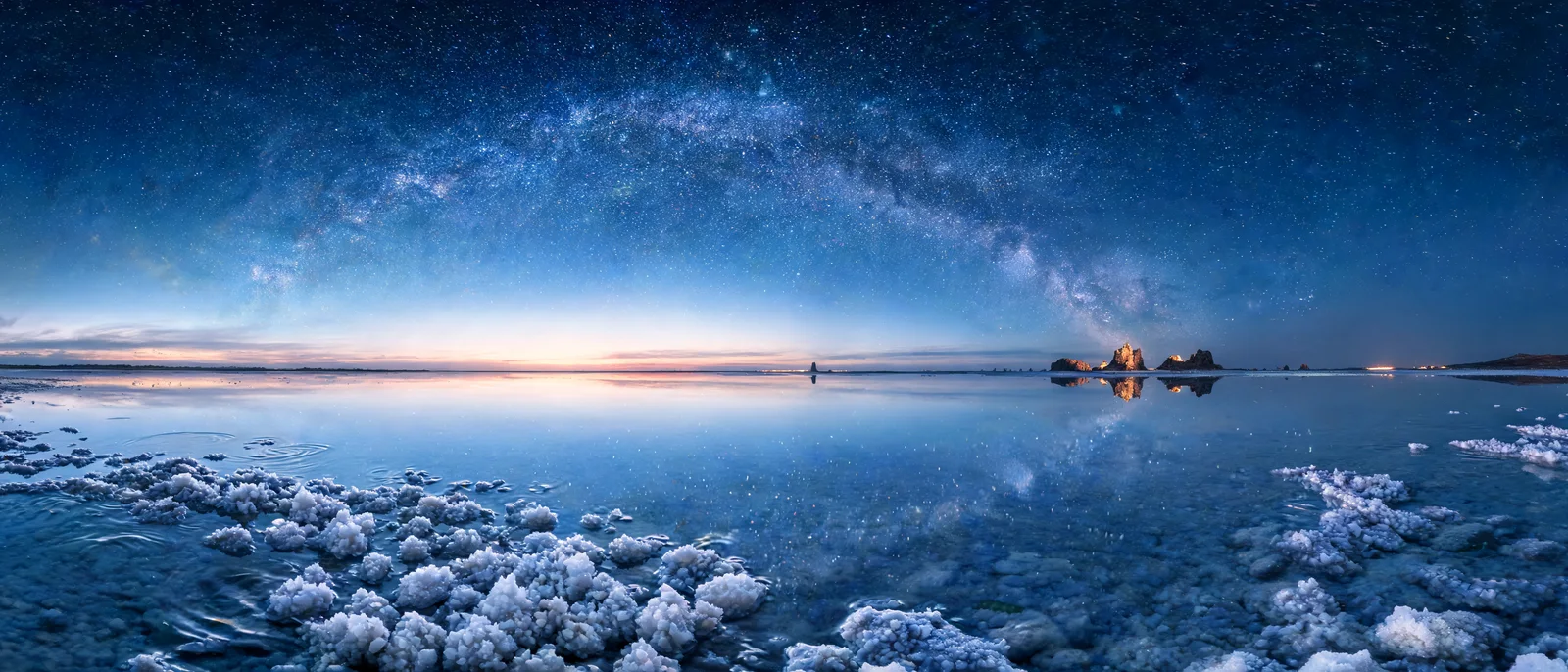
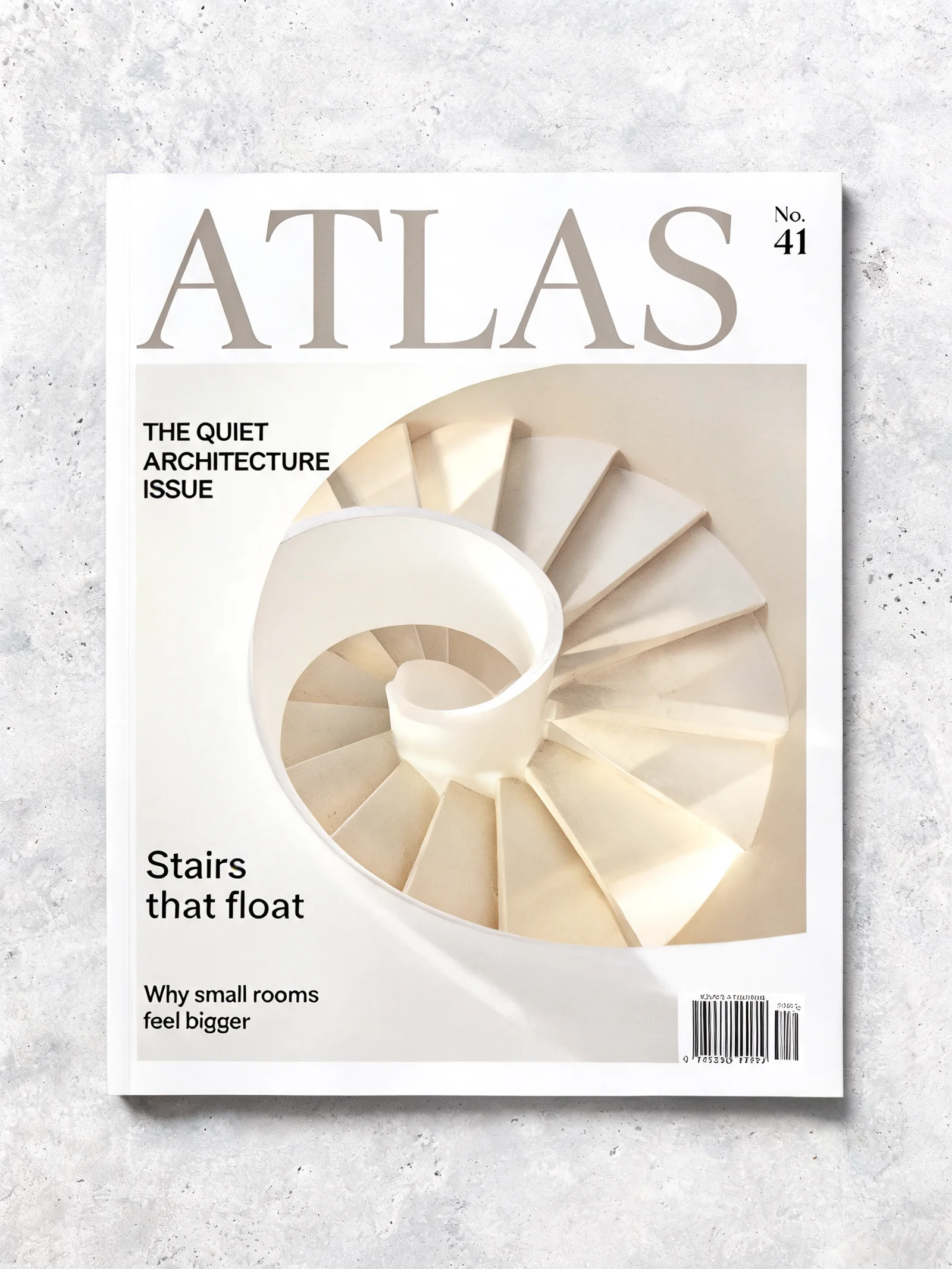
Use Seedream at 3K to make a 21:9 hero banner for the landing page: a vast white salt flat at dawn with a thin mirror of sky and distant mountains.Real, unedited Seedream results, the kind of assets a site or app needs:


Step 3: Save it into your project
This is where Cursor shines. Ask the agent to download the image into your assets folder and wire it into the code in the same request. You review the diff like any other change.
Save that banner to public/images/hero.webp and use it as the full-width background of the Hero section, with a dark gradient on the left so the headline stays readable.You can also edit existing assets: point the agent at a product photo in your repo and ask Seedream to place it in a new scene, since it takes up to 14 reference images.
Seedream 5 Lite at a glance
Seedream is ByteDance’s image model. AiWings offers Seedream 5 Lite, which works the same way everywhere you add it:
| Model | Sizes | Reference images | Cost per image | Best for |
|---|---|---|---|---|
| Seedream 5 Lite | 2K, 3K | Up to 14 | 5 credits ($0.05) | Wide banners, interiors, product scenes |
Prices are at the top-up rate of $0.01 per credit, and plans include more credits per dollar. You get 3K for the same price as 2K (5 credits ($0.05)). To stop naming the model every time, say “make Seedream 5 Lite at 3K my default”.
Tips for app assets
- Use 21:9 for full-width banners, and ask for exactly the shape the layout needs.
- Use 3K when you’ll crop or scale the image: it costs the same as 2K.
- Mention your brand colors and the style of your existing UI so new images match the site.
- Ask for a set in one style: the agent can reuse the same prompt structure for every image.
- Name files and folders in the request, and ask for WebP at the size you actually display.
If something doesn’t work
- The agent says it can’t make them: check that AiWings is enabled in Cursor Settings → MCP and that you’re in Agent mode.
- AiWings shows a red dot: click Connect again and finish the sign-in in your browser.
- No tools listed: check that the URL in mcp.json is exactly https://aiwings.io/api/mcp, then restart Cursor.
- Out of credits: top up from your AiWings dashboard, then ask the agent to try again.
Bottom line
Cursor can’t make images on its own, but with AiWings added as an MCP server, Seedream becomes part of your build: generate the asset, save it and use it in your code in one request. The same server also gives Cursor GPT Image, Nano Banana, Imagen and Seedance video.
FAQ
Can Cursor use Seedream natively?
No. Cursor doesn’t include ByteDance’s Seedream models. You add them with AiWings, then ask for Seedream by name.
What sizes does Seedream 5 Lite make?
2K and 3K, in 1:1, 4:3, 3:4, 16:9, 9:16, 3:2, 2:3, 21:9. Both sizes cost 5 credits ($0.05), so there’s no reason to pick the smaller one.
Can Seedream edit my own images?
Yes. It takes up to 14 reference images, so you can keep a product exactly as it is and change the scene around it.
Should I add it for one project or all of them?
Use ~/.cursor/mcp.json to add it to every project, or .cursor/mcp.json inside a repo to add it to that project only, for example to share the setup with your team.