
If you’ve asked Claude to “draw this”, “make a mockup” or “generate an image”, you’ve hit the gap: Claude is excellent at ideas and prompts, but it has no image generator of its own. The fix takes about a minute. Add AiWings as a connector, and Claude can create and edit images with GPT Image, Nano Banana, Imagen, Seedream, Grok Imagine and Flux, in the same chat.
What you need
- A Claude account on a plan that lets you add custom connectors.
- An AiWings account (sign in with Google). Usage comes from your AiWings credits.
- About a minute.
Step 1: Add AiWings to Claude
You only do this once. After that, images is available in every Claude chat with the connector turned on.
- 1In Claude, open Settings → Connectors and click Add custom connector.
- 2Name it AiWings and paste the URL below.
- 3Click Connect, then sign in to AiWings and allow access.
- 4In a new chat, make sure AiWings is turned on in the tools menu.
https://aiwings.io/api/mcpStep 2: Ask Claude for an image
Name the model in your request. Claude writes a detailed prompt, calls the AiWings image tool and shows the result in the chat. It’s a good idea to let Claude plan first: ask it to sharpen your idea, then generate with the model you ask for.
Make a 3:2 packaging mockup of three matte tea tins labeled TIDE, EMBER and MOSS on a stone surface, in soft window light.You don’t have to name a model: Claude uses your saved default. Name one when you want a specific look. Real, unedited results from different models:
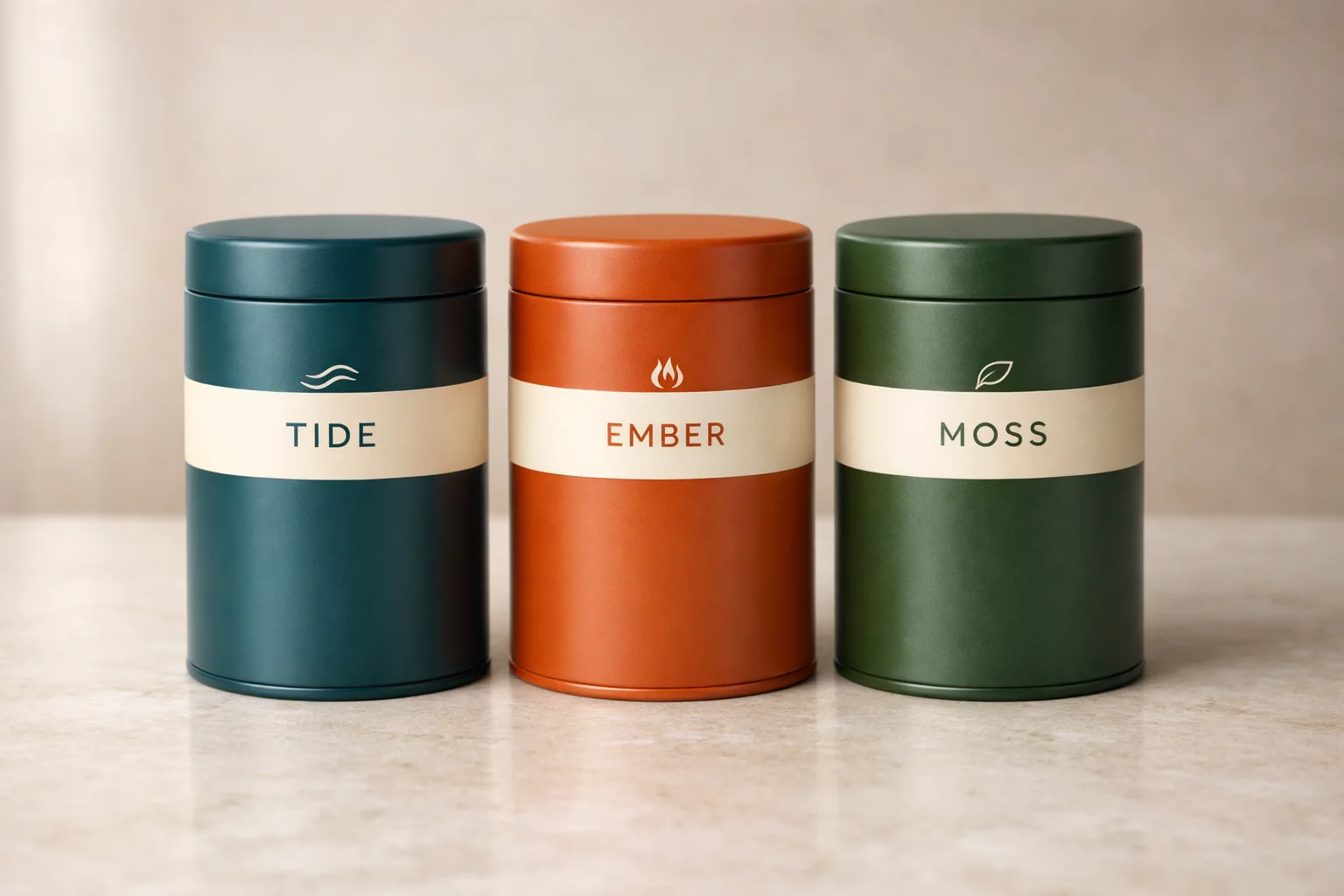

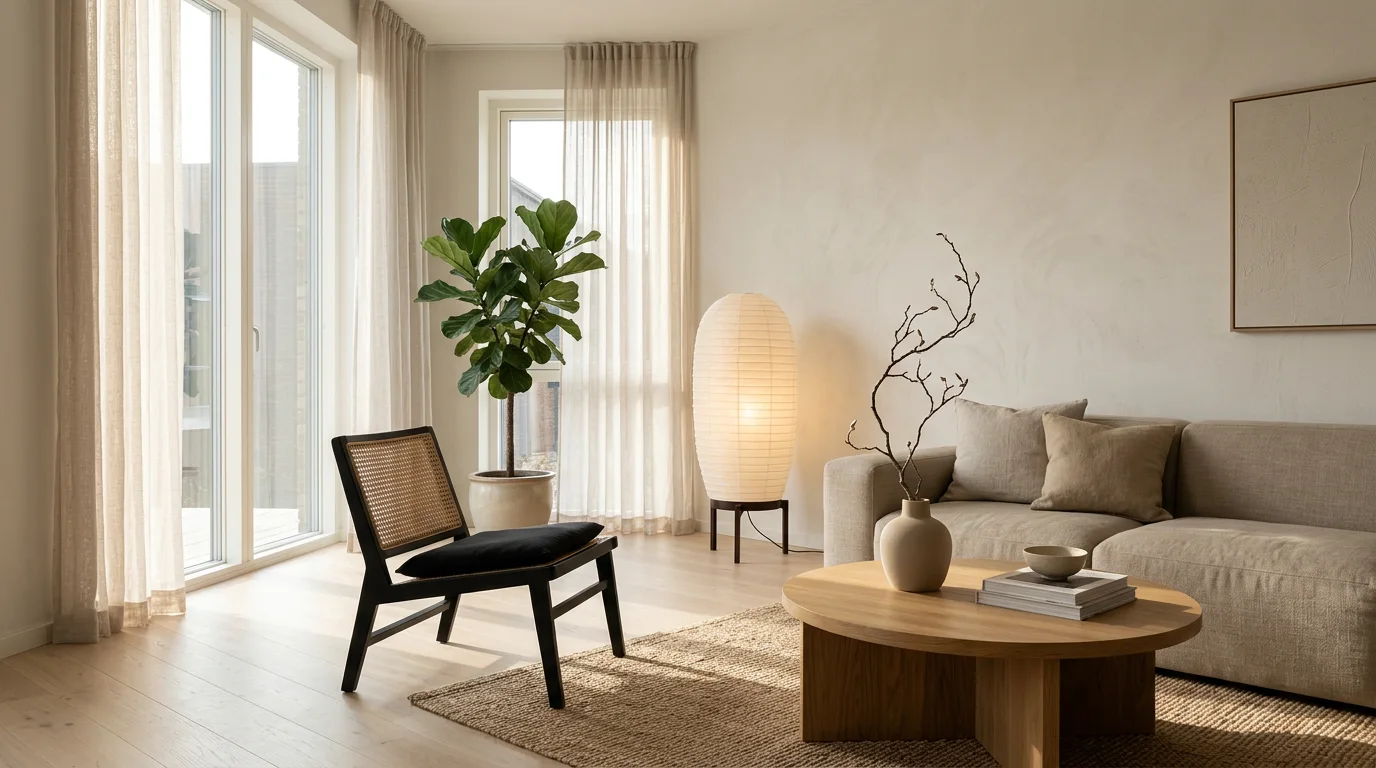
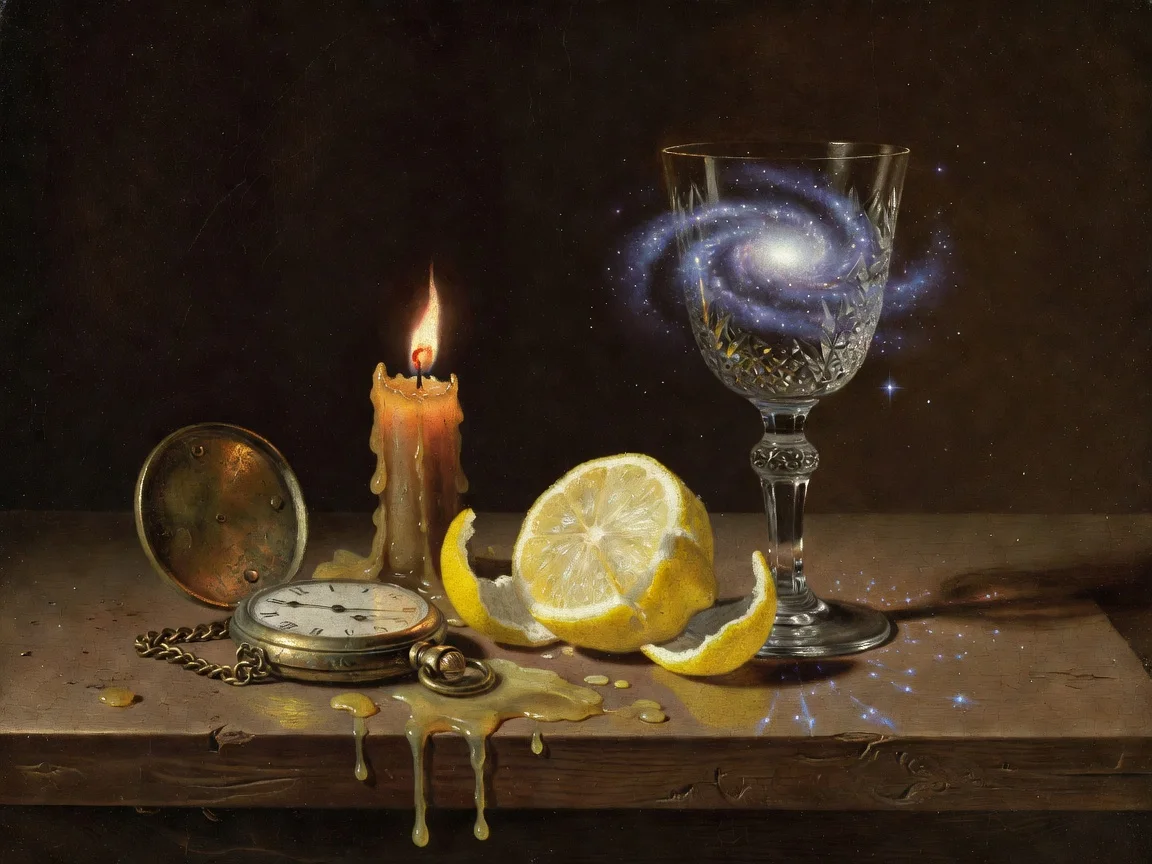
Step 3: Edit your own images
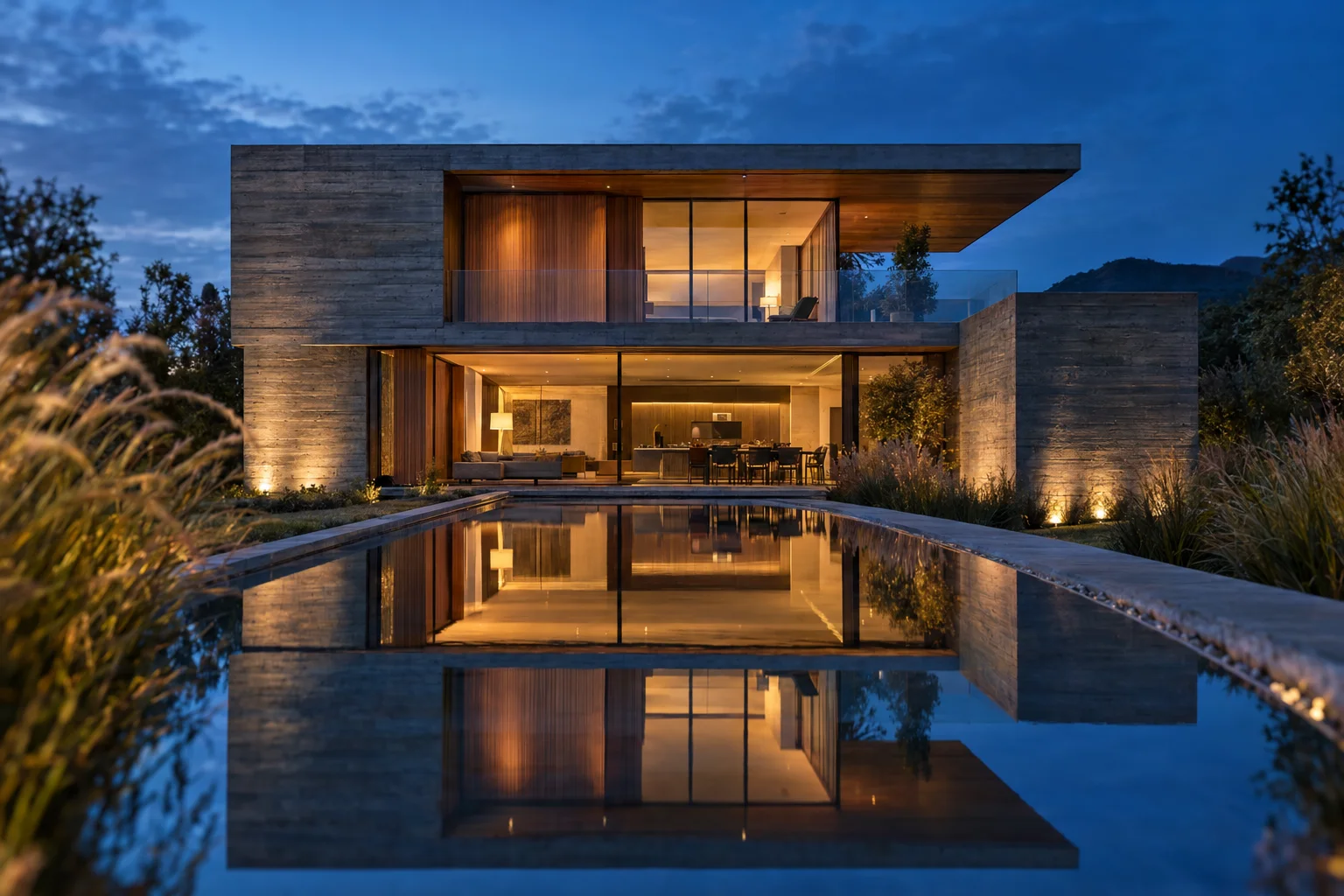
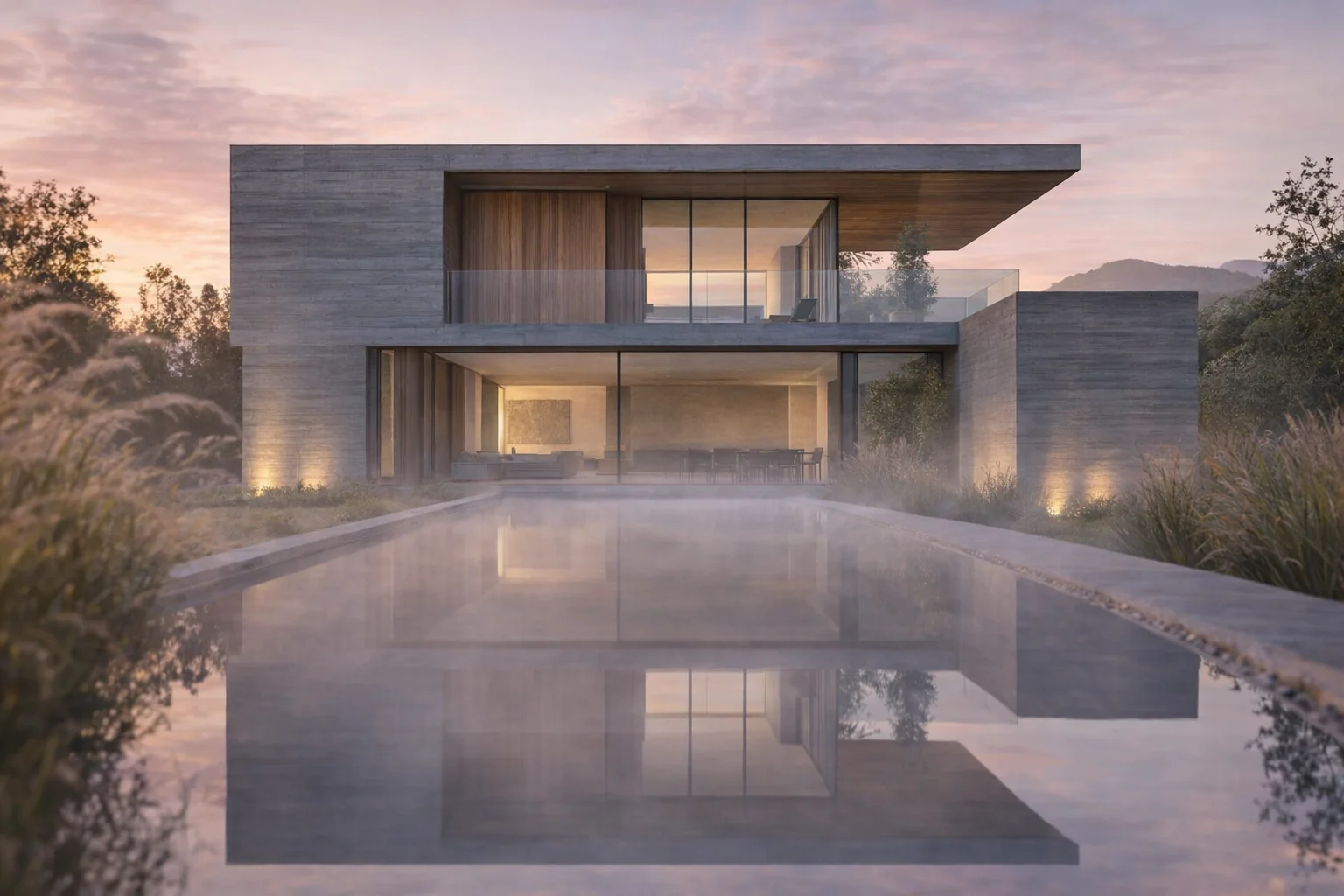
Ask Claude to open the AiWings upload box, add your image, and describe the change. Models like GPT Image, Nano Banana and Seedream keep your original and change only what you ask for.
Open the AiWings upload box. Then edit my house render so it’s sunrise instead of dusk. Keep the architecture and the camera angle exactly the same.The original render on the left, and the edited version on the right: same building, new time of day.
Which model to pick
All of them work the same way in Claude, and all use the same credits. Pick by the job:
| Model | Sizes | Reference images | Cost per image | Best for |
|---|---|---|---|---|
| GPT Image 2.5 Sunburst | low, medium, high, xhigh, max | Up to 10 | 2–63 credits ($0.02–$0.63) | Precise edits, text, finished work |
| Nano Banana 2 | 1K, 2K, 4K | Up to 14 | 8–19 credits ($0.08–$0.19) | Everyday work, wide formats, 4K |
| Nano Banana Pro | 1K, 2K, 4K | Up to 14 | 19–38 credits ($0.19–$0.38) | Final work with text and fine detail |
| Imagen 4 Ultra | 1K, 2K | None (text only) | 8 credits ($0.08) | Photoreal products and interiors |
| Seedream 5 Lite | 2K, 3K | Up to 14 | 5 credits ($0.05) | Wide scenes and editorial layouts |
| Grok Imagine | 1K | Up to 1 | 3 credits ($0.03) | Fast stylish experiments |
| Flux Fast | 1K | None (text only) | 1 credit ($0.01) | One-credit drafts |
Prices are at the top-up rate of $0.01 per credit, and plans include more credits per dollar. To stop naming the model every time, tell Claude which one to use by default.
Tips for generating images in Claude
- Let Claude write the prompt: describe the goal and ask for three directions before generating.
- Put exact words in quotes and say where they go in the image.
- Explore with a cheap model, then re-run the winner on a stronger one for the final.
- Say what to keep when you edit: keep the product the same, change only the background.
- Use a Claude Project for a brand: put your style notes in the project and every image in it follows them.
If something doesn’t work
- Claude says it can’t make images: check that AiWings is turned on in the chat’s tools menu, then ask again.
- The connector shows no tools: remove it in Settings → Connectors and add it again with the same URL.
- Sign-in loops: allow pop-ups for claude.ai and finish the AiWings sign-in in the same browser.
- Out of credits: top up from your AiWings dashboard, then ask Claude to try again.
Bottom line
Claude can’t make images on its own, but with AiWings connected, any image model is one sentence away. The same connector also gives Claude Seedance video, all from one balance.
FAQ
Can Claude generate images on its own?
No. Claude can describe, plan and write prompts for images, but it doesn’t create them. A connector such as AiWings adds image generation, so Claude can make them in the same chat.
Which image models can Claude use?
GPT Image, Nano Banana, Imagen 4, Seedream, Grok Imagine and Flux, from one balance. Ask for one by name, or save your favourite as the default.
Can Claude make videos too?
Yes. With Seedance, Claude can generate videos with sound from a prompt or from an image. Videos take a few minutes and appear in the chat when they’re ready.
Does it work in the Claude desktop and mobile apps?
Yes. Connectors you add on claude.ai are available in the Claude desktop and mobile apps signed in to the same account.
Which Claude plans can add the connector?
Any Claude plan that lets you add a custom connector. On Team and Enterprise plans, an owner may need to add AiWings for the organization first.